15 best ways to keep your Mac secure

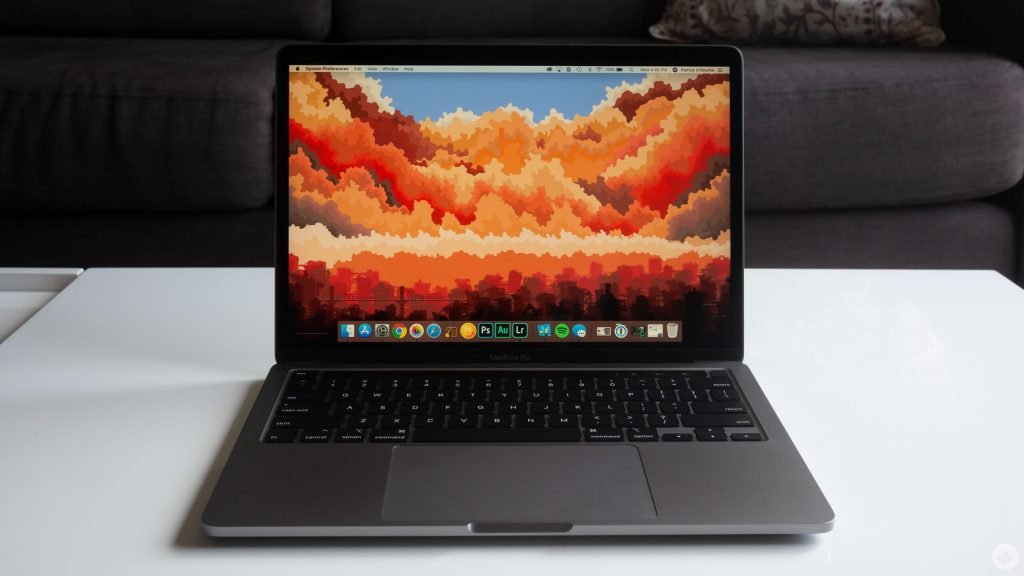
When you ask someone why they want to own a Mac, they’ll often say because they’ve heard Apple’s computers are more user-friendly and secure than PCs.
While the user-friendliness will come down to your own personal preference, macOS is a very secure operating system. Apple puts a lot of focus on user privacy and security in every new release of its desktop OS. While the tech giant provides us with several great settings to help protect our Macs, it’s up to us to make sure we audit and enable them.
It’s important to remember that every security improvement comes at the cost of user convenience. With this in mind, not every setting may make sense for your personal use case. However, one thing is true for everyone — ensure to save your passwords somewhere safe, like in a password manager and backup your Mac to protect your data.
Every security tip in the world won’t help you if you can’t access your Mac.
Below are 15 ways to help make your Mac more secure:
1. Use a strong password
A strong password is the first line of defence when it comes to ensuring your Mac is secure. Many of us likely already use passwords on all of our devices, but we may not necessarily use strong ones. The best passwords are long and complex. I recommend changing your password to something that is an easily memorable sentence. Something like “i love my dog” would take 2 thousand years to crack. Consider changing it to “I l0ve my dog$,” which would take 4 billion years to crack. I recommend using a password strength checker like security.org to see if your password is strong enough to protect your devices.
To change your password on your Mac:
- 1. Launch System Preferences
2. Click Security & Privacy
3. Click the General tab
4. Click Change Password…
5. Type in your old password
6. Type in your new strong password
7. Retype your new password under Verify
8. You can enter in a password hint, but I recommended skipping this
9. Click Change Password
2. Require password immediately after sleep
What use is a strong password if it doesn’t get enabled? Every time I walk away from my Mac, I press control+command+Q to lock it. The Center for Internet Security recommends setting a screensaver to start after two minutes of inactivity if you forget to manually lock your computer. Manually locking your Mac and setting a screen saver will minimize the threat of someone accessing your Mac when you step away from it.
To set your password to be required immediately after sleep or screen saver begins:
- 1. Launch System Preferences
2. Click Security & Privacy
3. Click the General tab
4. Check off Require password after sleep or screen saver begins
5. Select immediately from the drop-down
To set a screensaver:
- 1. Launch System Preferences
2. Click Desktop & Screen Saver
3. Click the Screen Saver tab
4. Check off Show screen saver after
3. Disable password hints
Password hints are recommended by Apple and are an excellent way for you to remember your password. Unfortunately, they also serve as a perfect tool to help someone guess your password too. The Center for Internet Security actually recommends organizations turn off password hints as a way to help prevent someone from potentially guessing your password.
To disable password hints:
- 1. Launch System Preferences
2. Click Users & Groups
3. Click Login Options
4. Click the lock icon
5. Enter your password
6. Click Unlock
7. Uncheck Show password hints
4. Require an administrator password to access system-wide preferences
If you share a Mac with family or friends, this setting will help ensure that only you and other administrators can make setting changes that impact all users. But, of course, standard users will still be able to make customizations for their individual profiles.
To require an administrator password to access
Be the first to write a comment.