Antivirus

Kaspersky Secure Connection VPN

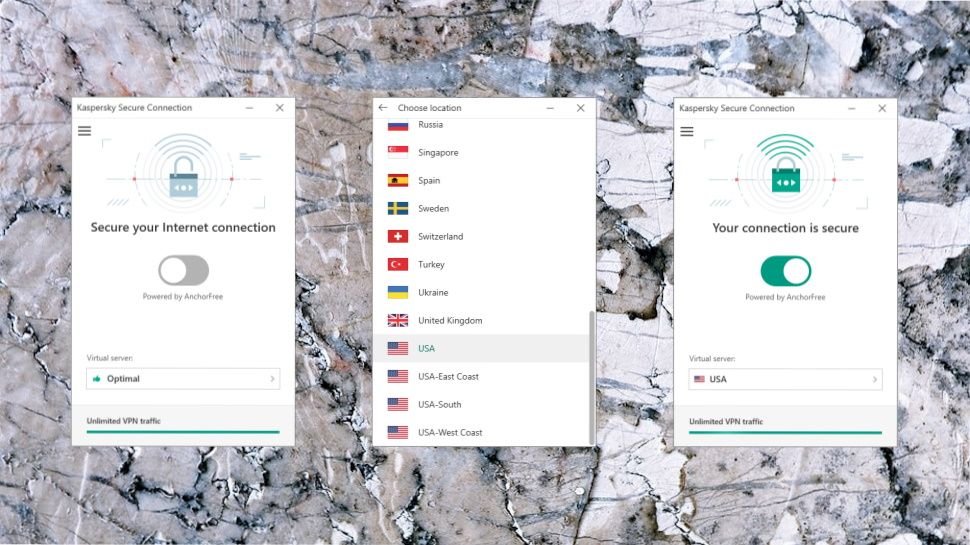
Kaspersky Secure Connection is a low-cost, easy-to-use and torrent-friendly VPN service from big-name security vendor Kaspersky Labs.The service is aimed at a non-technical consumer market, and that’s clearly reflected in the website. It explains some general benefits of a VPN – privacy, unblocking websites – but contains almost no details on the number of countries…

Kaspersky Secure Connection is a low-cost, easy-to-use and torrent-friendly VPN service from big-name security vendor Kaspersky Labs.

The service is aimed at a non-technical consumer market, and that’s clearly reflected in the website. It explains some general benefits of a VPN – privacy, unblocking websites – but contains almost no details on the number of countries or locations available, the supported protocols, DNS issues, kill switches or anything faintly low-level.

  • Want to try Kaspersky Secure Connection? Check out the website hereCheck out the website here

Hotspot Shield, and offers a minimal 27 locations spread around the world (Europe, North America, Brazil, Hong Kong, Japan, Mexico, Russia, Singapore). There are a few welcome features, the best being the ability to automatically connect when you access insecure or untrusted wireless networks, but for the most part, Kaspersky keeps options to an absolute minimum.

This does make the apps supremely user-friendly, though, and with downloads available for Windows, Mac, iOS and Android, you can have most devices protected at speed and with the minimum of hassle. (Unfortunately, there’s no way to set up the service manually, on a router, Chromebook or anything else – you can only access Secure Connection from the official apps.)

Plans and pricing

Kaspersky Secure Connection has an extremely limited free plan where you can’t choose your location and are restricted to 200MB of traffic a day (300MB if you register, or you already have a My Kaspersky account).

This isn’t quite as bad as it sounds. Even that 200MB per day translates to around 6GB a month without requiring handing over any personal data. But such a low daily limit means you’ll struggle if you want to download or stream very much, and if you’re willing to hand over your email address, there are better options around (Windscribe’s free account gives you 2GB a month, but rises to 10GB if you register.)

Fortunately, the picture improves significantly if you sign up for a paid monthly account. This gets you unlimited data use, full access to all locations and support for up to five simultaneous connections, all for the very low price of $4.99. Buying a monthly account direct from Hotspot Shield costs $12.99.

Pay for a year upfront – card or PayPal supported – and the price plummets to an effective $1.67 a month. That’s a fraction of what you’ll pay if you go direct to Hotspot Shield, where the annual plan costs a chunky $7.99 a month. Hotspot Shield’s clients have more power and features, but Kaspersky Secure Connection gives you access to some of the same locations, and all the same performance, for a fraction of the price.

Website

While Kaspersky Secure Connection doesn’t record what you do online, there is some session logging (Image credit: Kaspersky)

Privacy and logging

It’s always difficult to know whether you should trust any VPN provider with your privacy, and this is especially true with Kaspersky, after the US government announced it was banning the use of Kaspersky software on sensitive government systems (Pentagon, GSA, NASA).

We’ve yet to see any evidence that Kaspersky has done anything wrong, though, and the main focus of the concern seems to be Kaspersky’s antivirus software. Kaspersky Secure Connection doesn’t have the same kind of access to files, and the company doesn’t control the underlying VPN network, either: it’s powered by the California-based Hotspot Shield.

Should you be concerned? We can’t say for sure, but as there’s still no sign of wrongdoing on Kaspersky’s part we’re not going to allow these issues to influence our review.

We’re more interested in Kaspersky’s logging policy, but the website barely mentions the issue beyond a single line on the front page: “Kaspersky Secure Connection won’t log what you’re doing online and won’t keep any records of which websites you visit.”

While that sounds definitive, it’s not the whole story. Hotspot Shield’s Privacy Policy makes it clear that although there’s no logging of where you’re going online, the service records plenty of information about your connection sessions.

For example, the product logs the duration of VPN sessions, the bandwidth used, your approximate geographical location, data on your ISP or carrier, and a unique ID for the device, which enables building up a pattern of use over time.

The policy also says device IDs are associated ‘with other data we collect (such as for measuring bandwidth use, providing support, understanding how you interact with our VPN, and other analytics and marketing purposes).’

None of this means Kaspersky can see what you’re doing online, or connect any internet action back to you, but it’s still a little more logging than you might expect.

Windows App

This is the user interface of Kaspersky Secure Connection’s Windows app (Image credit: Kaspersky)

Apps

Getting hold of the free Kaspersky Secure Connection edition is straightforward. The package comes bundled with some Kaspersky products, or you can grab clients for Windows, Mac, iOS and Android from the Kaspersky site. That’s a significant improvement on Bitdefender’s VPN, which can only be used as part of a bundle with another Bitdefender product- it’s not available stand-alone.

The Windows app is compact, and has a simple, straightforward interface. By default, it selects a server automatically, and you can connect and disconnect with a click. Upgrade to the commercial version and you can choose one of the 27 available locations from a list, but it’s still very basic. There are no ping times or server load figures to help with your selection, and no Favorites system to save your most frequently used locations.

Connection times are quick, though, at barely 1-2 seconds (other VPNs may take 5-15 seconds to connect via OpenVPN.)

We expected the ‘Optimal’ feature to choose our closest UK server, but we were mostly connected to Sweden, sometimes the Czech Republic. Fortunately, the client displays the country it’s chosen, so you’ll immediately see if it’s something unexpected.

Automatically Connect

You can configure Kaspersky Secure Connection to automatically connect when you try to join an insecure wireless network (Image credit: Kaspersky)

A Settings dialog enables configuring the app to connect when it first launches, and allows setting up very flexible rules for what to do when you connect to an insecure wireless network. You can have the app enable the VPN automatically, ask you what to do, or just connect as usual, for instance. And rules are stored per network, so you can have the VPN turn itself on for networks which might be unsafe, and leave it off for others.

Settings

Kaspersky Secure Connection’s Windows app only has a few settings (Image credit: Kaspersky)

The Windows client doesn’t have a configurable kill switch to block internet access if the VPN connection drops, and a Known Issues support document explains that Kaspersky Secure Connection won’t protect your data during at least some interruptions in the secure connection (when you change servers, or network connections).

Still, when we forcibly dropped our VPN connection, the client warned us immediately, allowing us to stop what we were doing and manually reconnect. That’s good, and it looks like better news is on the way, as early Kaspersky 2021 beta versions suggest there’s a kill switch in the next release. 

Kaspersky’s Android app looks and feels much the same as the desktop build. There’s no significant technical tweakery, you can’t play around with protocols or ports, or anything else advanced. But it’s easy to use, can automatically connect when you access insecure or unknown networks, and comes with a 7-day trial of the full plan if you’d like to find out more.

New Speedtest Image

We use several different speed tests to determine the performance of each VPN we review (Image credit: Ookla)

Performance

The Kaspersky website sells Secure Connection more on its privacy and security features than any site or service unblocking abilities. There’s a line explaining that it “lets you access more sites and content”, but there’s no mention of Netflix or any other site you might particularly want to view.

This silence didn’t fill us with confidence, but Secure Connection did reasonably well in our tests, failing with Amazon and Disney+, but getting us access to BBC iPlayer and US Netflix content.

Download speeds were acceptable just about everywhere, with the service hitting 60-65Mbps from our 75Mbps UK connection, and 40-50Mbps when connecting from the UK to the US. Even the most distant locations did well, for example UK to Brazil speeds reached a creditable 25-30Mbps.

We re-ran our tests from a European data center with a 350Mbps+ connection to get a better feel for its top speed, and the results were better than many at a capable 110-120Mbps.

The service scored on our final privacy tests, too, with multiple sites confirming our clients had no DNS or WebRTC leaks.

Final verdict

Fast, cheap, and easy-to-use, Kaspersky Secure Connection could be a sensible choice for novice users with basic security needs. But more experienced types looking for features and configurability might be better off looking elsewhere.

  • We’ve also highlighted the best VPN

Read full review

NordVPN 3 Year
Surfshark 24 Months

Read More

Be the first to write a comment.

Leave a Reply

Your email address will not be published. Required fields are marked *

Antivirus

Bitdefender Family parental control review

If you’re looking for a comprehensive online security suite for your family that also includes parental controls, Bitdefender is one of the best options right now. It’s a well-known security provider offering an award-winning antivirus program, along with a password manager, VPN, and identity theft protection. But does its parental control offering, which is bundled

If you’re looking for a comprehensive online security suite for your family that also includes parental controls, Bitdefender is one of the best options right now. It’s a well-known security provider offering an award-winning antivirus program, along with a password manager, VPN, and identity theft protection.

But does its parental control offering, which is bundled with its Family plans and not available via a standalone subscription or even a dedicated app, compete against the best parental control apps?

Read on as we dissect the various parental control features it offers, what they cost, how easy the dashboard is to use every day, and what the top competitors offer.

    Bitdefender Premium Security Family subscription options:

  • $99.99/year at Bitdefender

Bitdefender parental control review: Plans and pricing

Bitdefender no longer offers its parental control features as a standalone subscription. You’d have to get one of its four family plans. But note that its entire suite of parental control features is available with each of these four plans.

The Total Security Family plan starts at $79.99 for the first year and covers up to 25 devices across five family members. At this price, the cost boils down to around $16 per member per year, which is more affordable than many other parental control applications. Not to forget that, for the price, you also get 24/7 real-time antivirus protection for up to 25 devices, as well as a password manager.

Bitdefender Family pricing

(Image credit: Bitdefender)

Next is the Premium Security Plan, which costs $99.99 for the first year and also comes with scam protection, AI-based scam protection, and a VPN with 4,000+ servers in 50+ countries. The Ultimate Security Family Plan and the Ultimate Security Plus Family Plan cost $119.99 and $199.99 for the first year, respectively.

The former comes with dark web monitoring and identity theft protection features such as an identity protection score and real-time breach notifications, while the latter also includes $2 million in identity theft insurance, three-bureau credit monitoring, and other bank, credit card, and investment alerts.

Bitdefender parental control review: Features

One of the standout Bitdefender parental control features is the ability to set screen-time schedules for your children, who would only be able to access their devices during the allowed time intervals.

Along with this, Bitdefender also offers several preset routines: Focus Time, Family Time, and Bedtime, which you can customize as per your child’s daily activity and schedule.

Bitdefender parental control dashboard

(Image credit: Bitdefender)

There’s also a pretty handy internet time management feature, which allows you to control how much time your child spends on the internet during a day. A nice addition is the ability to reward extra screen time for your children for responsible online use.

In addition to internet scheduling, parents can also choose to cut off internet access directly on their child’s device using Bitdefender’s Stop Internet feature.

Bitdefender parental control dashboard

(Image credit: Bitdefender)

Bitdefender also offers predefined age-appropriate filtering categories to help you filter out inappropriate content such as porn, betting, or online gaming for your children. As with screen time, you can also fine-tune these filters to better suit your child’s day-to-day use.

Apart from category-level filtering, parents can also allowlist or blocklist specific URLs individually, in case you want to go beyond the category selection.

Bitdefender parental control dashboard

(Image credit: Bitdefender)

Parents can set up to five child profiles, each with the child’s name, photo, and birth date. Bitdefender automatically applies age-appropriate filtering as soon as the profile is created, which parents can then edit as per their needs.

Along with this, there’s also location tracking, which helps you know where your child is on an interactive map at all times.

Bitdefender parental control dashboard

(Image credit: Bitdefender)

Lastly, there’s Safe Search, which lets you remove explicit and harmful results from search engines, as well as YouTube restrictions, which ensure your child only views age-appropriate videos on the platform.

However, note that content filtering and safe browsing require an active VPN connection to function, as per Bitdefender’s listing on the Google Play Store.

Bitdefender parental control review: Interface and in-use

Bitdefender parental control works across Android, Windows, iOS, and macOS. That said, Windows and Android get full, unrestricted enforcement of every feature, whereas macOS and iOS are noticeably more limited, largely due to Apple’s own platform restrictions.

For instance, iOS content filtering runs through Apple’s Screen Time and not Bitdefender’s own engine. Parents have to create a child account through Apple ID, then Bitdefender’s app hooks into Apple’s Screen Time restrictions rather than doing its own independent content filtering.

However, the setup is pretty simple. You just have to download the app on your child’s own device. Unlike other parental control applications, you can’t download the app on your child’s phone remotely – you’ll need physical access to the device to do so.

One thing worth noticing is that, after the 2025 overhaul, parental control is no longer configured within the Bitdefender Central mobile app, but from the Bitdefender Central web dashboard, which can still be accessed through the mobile application.

Bitdefender parental control dashboard

(Image credit: Bitdefender)

Once you’re on this dashboard, day-to-day use is genuinely easy. Bitdefender’s Activity Dashboard is filled with several graphs and charts, which allow you to check your child’s phone activity at just a glance.

For example, there’s a bar chart showing their daily internet time over the past few days, as well as a pie chart showing their current day’s internet usage along with their remaining time. The dashboard also gives parents visibility into what’s actually being blocked and when.

Bitdefender parental control dashboard

(Image credit: Bitdefender)

The Prevented Content Access panel is a running log of every link blocked on the child’s device over the past 7 or 30 days. This allows you to see whether your filtering settings are actually able to catch anything, or whether your child is repeatedly trying to search for restricted websites on their device.

Bitdefender par

Read More

Continue Reading
Antivirus

Microsoft Defender briefly decided Google Search was malware

You can pay every month for Office 365’s productivity tools, but you still can’t escape Microsoft Defender’s habit of turning everyday links into fake security alerts. On September 2, Office 365 subscribers ran into an unusual incident: Redmond’s endpoint antivirus engine began flagging Google Search results as potentially malicious URLs.Read Entire Article…

You can pay every month for Office 365’s productivity tools, but you still can’t escape Microsoft Defender’s habit of turning everyday links into fake security alerts. On September 2, Office 365 subscribers ran into an unusual incident: Redmond’s endpoint antivirus engine began flagging Google Search results as potentially malicious URLs.Read Entire Article…
Read More

Continue Reading
Antivirus

5 Windows Security Settings You Should Never Skip Over

Windows has a range of authentication methods for accessing your device, a firewall, an antivirus, a way to encrypt your drives and more…

Windows has a range of authentication methods for accessing your device, a firewall, an antivirus, a way to encrypt your drives and more…
Read More

Continue Reading
Antivirus

Watch out for this fake Face ID Apple Pay pop-up scam

Macworld The security, antivirus, and VPN company Malwarebytes has an interesting post on its Malwarebytes Labs blog detailing a new and sophisticated scam. The web-based trick is meant to make users think that they just made a big payment with Apple Pay, with the goal being to trick them into calling a fake “Apple Support”

Macworld

The security, antivirus, and VPN company Malwarebytes has an interesting post on its Malwarebytes Labs blog detailing a new and sophisticated scam.

The web-based trick is meant to make users think that they just made a big payment with Apple Pay, with the goal being to trick them into calling a fake “Apple Support” number…
Read More

Continue Reading